The Ultimate Guide to Adding a Customer Photo Gallery to Your Shopify Store
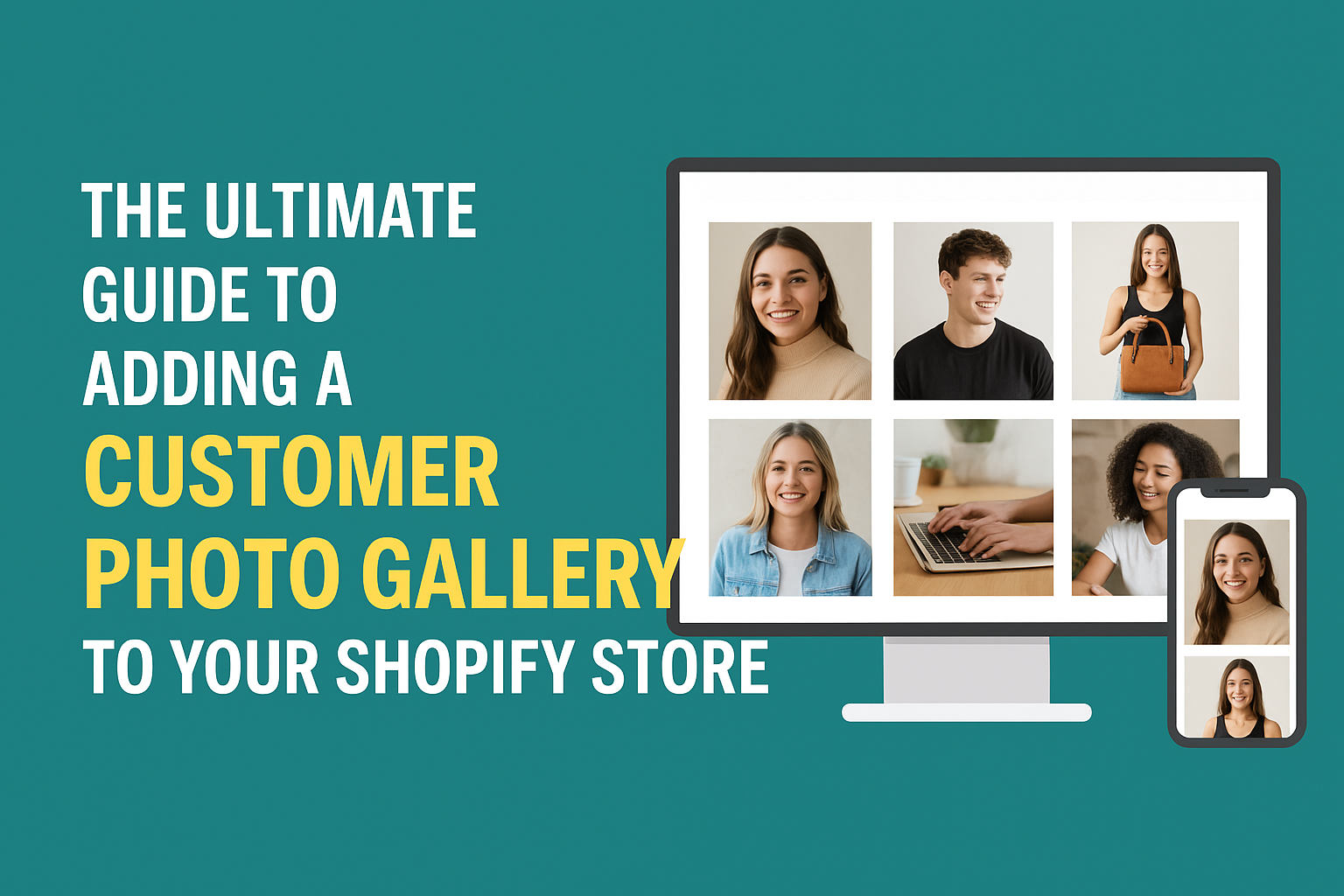
Customer photos are one of the most powerful ways to build trust, increase conversions, and create a real community around your brand. Shoppers want to see real people using your products, not just polished studio shots. Adding a customer photo gallery to your Shopify store makes this easy.
In this guide, you will learn:
Why customer photo galleries increase conversions
What makes a great Shopify gallery
The simplest way to add one without coding
How to collect customer photos consistently
How to make your gallery fully shoppable with product tags
Let’s get started.
Why Add a Customer Photo Gallery to Your Shopify Store?
A customer gallery provides several benefits that directly impact sales and trust.
1. Social Proof That Converts
Real customer photos help shoppers feel confident in their purchase. Seeing your products in real-life situations is more convincing than any testimonial.
2. Higher Conversion Rates
User generated content often increases conversions by 10 to 30 percent. It helps remove hesitation and makes the buying decision easier.
3. Better Product Discovery
If customers can tag products in their photos, visitors can browse images to find products that match their taste or needs.
4. Stronger Brand Community
Encouraging submissions helps customers feel more connected to your brand, which leads to more repeat purchases and engagement.
The Easiest Way to Add a Customer Photo Gallery to Shopify
You could custom code a gallery, but it is expensive, slow and difficult to maintain. Most brands choose a dedicated app that handles everything automatically.
Uploadify – Customer Gallery (Recommended)
Our app allows merchants to:
Let customers upload photos directly on the store
Tag products inside photos
Collect custom attributes such as size worn or color
Display a clean and responsive gallery
Add filters and search options
Approve or reject photos before they appear
Show customer photos automatically on product pages
It gives Shopify merchants everything they need to create a modern and effective UGC gallery.
How to Add a Customer Photo Gallery Using Uploadify
Here is a simple walkthrough.
Step 1: Install Uploadify – Customer Gallery
Open the Shopify App Store
Search for Uploadify – Customer Gallery
Click Add app
Install the app on your store
Step 2: Create Your First Gallery
Inside the app:
Click Create Gallery
Set up the upload form
Enable product tagging and optional attributes
Your gallery is now ready to go live.
Step 3: Add the Gallery to Your Storefront
You can use an embed snippet or an app block. You can:
Add the gallery to any page
Display it on product pages
Create a dedicated Customer Gallery page
No coding is needed.
Step 4: Start Collecting Customer Photos
Here are a few ideas to encourage uploads:
Offer a discount for submissions
Run a monthly photo contest
Send post purchase emails asking for photos
Mention the gallery on social media
Highlight the best photos on your homepage
Our app makes moderation simple so only approved photos appear.
Make Customer Photos Shoppable With Product Tagging
A great gallery does more than show photos. It helps customers shop.
With Uploadify’s product tagging you can:
Tag one or more Shopify products in each photo
Allow shoppers to click the tag to open the product page
Create a smooth, shoppable browsing experience
Help customers find products they might not have noticed otherwise
This feature is especially powerful for fashion, beauty, lifestyle and home brands.
Best Practices for Customer Photo Galleries
1. Keep the Gallery Curated
Approve only photos that reflect your brand well.
2. Use Filters and Search
Our app allows shoppers to filter by:
Product
Color
Attributes like size or style
This improves the overall experience and keeps customers browsing longer.
3. Show the Gallery in Multiple Places
Consider placing customer photos:
On the home page
On product pages
In the cart
On your About or Community page
4. Reward Customers for Submitting Photos
A simple discount code can dramatically increase participation.
5. Use UGC in Ads
User generated content performs extremely well in paid social campaigns because it feels authentic and relatable.
The Impact a Customer Gallery Can Have on Your Store
Brands that use customer photo galleries often see:
Higher add to cart rates
Lower return rates
More loyal customers
Increased organic UGC
Better performing ads
Improved SEO from fresh image content
Your gallery becomes a long term asset that grows every time a customer uploads a photo.
Ready to Add a Customer Photo Gallery to Your Shopify Store?
If you want a simple and powerful way to collect and display customer photos and turn them into a shoppable experience, try:
It takes only a few minutes to set up and can make a big difference in your store’s conversion rate.